일상에서의 Wireshark
Wireshark란 오픈 소스 네트워크 프로토콜 분석기입니다. GUI와 CLI 환경 모두에서 사용할 수 있으며, 네트워크 문제를 분석할 때 많이 사용됩니다. 플랫폼 또한 Windows, macOS, Linux 등 다양한 운영체제에서 사용할 수 있습니다. GUI가 꽤 편하기 때문에 Windows나 macOS에서는 Wireshark 를 사용하는 경우가 많습니다. 여기서는 CLI 환경에서도 사용할 수 있는 TShark 를 소개합니다.
설치
Ubuntu 22.04에서 설치하는 방법을 소개합니다.
# CLI
sudo apt install tshark
# GUI
sudo apt install wireshark
wireshark 그룹 추가 후 컴퓨터를 재부팅해야 합니다.
sudo usermod -aG wireshark $USER
reboot
tshark -h
# TShark (Wireshark) 3.6.2 (Git v3.6.2 packaged as 3.6.2-2)
# Dump and analyze network traffic.
# See https://www.wireshark.org for more information.
# Usage: tshark [options] ...
네트워크 인터페이스 조회
먼저 TShark로 사용할 수 있는 네트워크 인터페이스를 조회합니다.
tcpdump와 유사하지만 특정 옵션이 더 추가되어 있습니다.
# tshark --list-interfaces
tshark -D
1. enp2s0
2. docker0
3. vetha1d3dea
4. any
5. lo (Loopback)
6. enx0c3796393822
7. bluetooth-monitor
8. nflog
9. nfqueue
10. dbus-system
11. dbus-session
12. ciscodump (Cisco remote capture)
13. dpauxmon (DisplayPort AUX channel monitor capture)
14. randpkt (Random packet generator)
15. sdjournal (systemd Journal Export)
16. sshdump (SSH remote capture)
17. udpdump (UDP Listener remote capture)
tcpdump의 경우
sudo tcpdump -D
1.enp2s0 [Up, Running, Connected]
2.docker0 [Up, Running, Connected]
3.vetha1d3dea [Up, Running, Connected]
4.any (Pseudo-device that captures on all interfaces) [Up, Running]
5.lo [Up, Running, Loopback]
6.enx0c3796393822 [Up, Disconnected]
7.bluetooth-monitor (Bluetooth Linux Monitor) [Wireless]
8.nflog (Linux netfilter log (NFLOG) interface) [none]
9.nfqueue (Linux netfilter queue (NFQUEUE) interface) [none]
10.dbus-system (D-Bus system bus) [none]
11.dbus-session (D-Bus session bus) [none]
패킷 캡처 시 사용할 수 있는 옵션
tshark 라는 명령어를 옵션없이 실행하면 기본적으로
첫번째 non-loopback 인터페이스가 선택되고
이 인터페이스를 경유하는 모든 패킷을 캡처합니다.
네트워크 분석하기에는 너무 많은 패킷이 캡처되기 때문에
네트워크 인터페이스, 프로토콜, 호스트, 포트 등을 지정해서 필터링합니다.
tshark
Network interface
-i,--interface네트워크 인터페이스의 이름 혹은 인덱스를 지정합니다.-i eth0eth0인터페이스를 캡처합니다.-i 22번째 인터페이스를 캡처합니다.
Processing
-fpcap-filter syntax 를 사용하여 패킷을 필터링합니다.- 패킷을 캡처할 때 사용됩니다.
-f "tcp port 80"TCP port 80 패킷 필터링합니다.
-Y,--display-filterWireshark displaY filter syntax 사용하여 보고싶은 패킷만 표시합니다.- 패킷을 읽을 때 사용됩니다.
-Y "http.request"HTTP request 패킷 표시합니다.
Stop writing
-a <autostop cond.> ...,--autostop <autostop cond.> …duration:NUMNUM 초(seconds) 후 중지합니다. (기본값 무한, 소수점 사용 가능)filesize:NUMNUM kB 이상 캡처 후 중지합니다. (최대 2GiB)packets:NUMNUM 개 패킷 캡처 후 중지합니다. (-c와 동일)
-cn개 패킷 캡처 후 중지합니다.-c 1010개 패킷 캡처 후 중지합니다.
Write
-w,--write-file지정한 이름의 파일로 출력합니다. (stdout의 경우 ‘-’)-w capture.pcap“capture.pcap"이라는 파일로 저장합니다.
-T출력 형식을 지정합니다.-T fields지정한 필드를 출력합니다.-T pdmlPacket Details Markup Language (PDML) 형식으로 출력합니다.-T psmlPacket Summary Markup Language (PSML) 형식으로 출력합니다.-T jsonJSON 형식으로 출력합니다.-T jsonraw포맷팅 없이 JSON 형식으로 출력합니다.-T ekElasticsearch에 bulk insert하기 위한 형식으로 출력합니다.
-e <field>위 출력 옵션 중ek,fields,json,pdml사용 시 출력할 필드를 지정합니다.-e tcp.portTCP port를 출력합니다.- 이 옵션은 여러 필드를 출력하기 위해 반복할 수 있습니다.
-e tcp.port -e tcp.flagsTCP port와 flags를 출력합니다.
-t a|ad|adoy|d|dd|e|r|u|ud|udoy타임스탬프 형식을 지정합니다.--colorWireshark GUI와 유사하게 텍스트를 색상으로 출력하며, 24비트 색상을 지원하는 터미널이 필요합니다. 또한 PDML 및 PSML 형식에 색상 속성을 제공합니다(이 속성은 비표준임).- 색상 설정을 변경하려면 ColoringRules 를 확인해보세요.
Read file
-r,--read-file파일에서 캡처된 패킷을 읽습니다.-r file“capture.pcap"이라는 파일에서 캡처된 패킷을 읽습니다.
패킷 분석
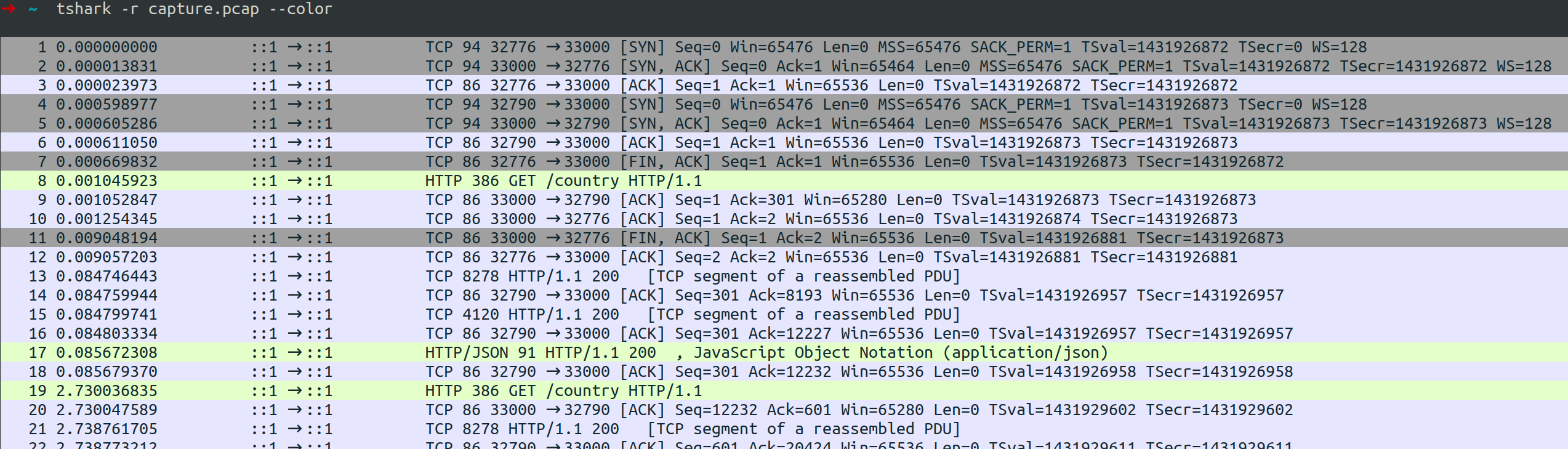
기본적으로 특정 네트워크 인터페이스를 지정해서 실시간으로 패킷을 캡처하거나 이미 캡처된 pcap 파일을 열어서 분석할 수 있습니다.
웹 앱 패킷 캡처
# Youtube
tshark -i any -f 'host www.youtube.com' --color
tshark -i any -f 'host www.youtube.com' -T fields -e ip.src -e ip.dst -e tcp.port
# 172.17.0.2을 제외한 443 port 패킷 캡처
sudo tshark -i any -Y '((tcp.port == 443 or udp.port == 443) and not ip.addr == 172.17.0.2)'
sudo tshark -i any -Y 'tcp.port == 443 or udp.port == 443'
```wweded

```sh
# 테스트 모바일 앱에서 로컬 서버로 들어오는 패킷 캡처 (앱에서 서버 도메인을 private ip로 설정)
tshark -i any -Y 'http and (tcp.port == 15500 or tcp.port == 33000) and ip.dst == 192.168.0.15' -T json
# Postman처럼 localhost로 요청하는 패킷 캡처
tshark -i lo -Y 'http and (tcp.port == 15500 or tcp.port == 33000)' -T json
# 15500 혹은 33000 포트로 요청하는 패킷에서 http body 출력
tshark -i any -Y 'http and (tcp.dstport == 15500 or tcp.dstport == 33000)' -T fields -e ip.src -e tcp.srcport -e ip.dst -e tcp.dstport -e http.file_data
tshark -i any -Y 'http.request and (tcp.port == 15500 or tcp.port == 33000)' -T fields -e ip.src -e tcp.srcport -e ip.dst -e tcp.dstport -e http.file_data

# loopback일 경우 ip.src, ip.dst 필드를 사용할 수 없다.
# localhost의 15500 혹은 33000 포트에서 응답하는 패킷에서 http body 출력
tshark -i lo -Y 'http and (tcp.srcport == 15500 or tcp.srcport == 33000)' -T fields -e http.file_data
tshark -i lo -Y 'http.response and (tcp.port == 15500 or tcp.port == 33000)' -T fields -e http.file_data
# localhost의 15500 혹은 33000 포트를 경유하는 모든 패킷에서 http body 출력
tshark -i lo -Y 'http and (tcp.port == 15500 or tcp.port == 33000)' -T fields -e http.file_data
파일 출력
파일로 출력할 때는 tcpdump와 유사하게 사용할 수 있습니다.
실제로 서버에서 패킷을 캡처하는 경우 의존성이 적고 가벼운 tcpdump를 더 많이 사용하는 편입니다.
파일로 출력할 때는 Wireshark display-filter(-Y)를 사용할 수 없습니다.
tshark: Display filters aren’t supported when capturing and saving the captured packets.
# tcp 프로토콜의 port 33000을 경유하는 패킷 5초간 캡처해서 tcp_33000.pcap 파일로 저장
tshark -i any -f 'tcp port 33000' -w tcp_33000.pcap -a duration:5
sudo timeout 5 tcpdump -i any -n tcp and port 33000 -w tcp_33000.pcap
파일 읽기
Wireshark(GUI)로 읽는 게 편하긴 하지만,
특정 필드만 출력하거나 JSON 형식으로 출력할 때는 CLI로 읽는 게 편합니다.
파일을 읽을 때는 pcap-filter(-f)를 사용할 수 없습니다.
tshark: Only read filters, not capture filters, can be specified when reading a capture file.
# tshark로 파일 읽기
tshark -r capture.pcap --color
# JSON 형식으로 읽기
tshark -r capture.pcap -T json | less
# 15500 혹은 33000 포트로 요청하는 패킷에서 ip, port, http body만 출력
tshark -r capture.pcap -Y 'http.request and (tcp.port == 15500 or tcp.port == 33000)' -T fields -e ip.src -e tcp.srcport -e ip.dst -e tcp.dstport -e http.file_data
tshark -r capture.pcap -i 'lo' -T fields -e ip.src -e tcp.srcport -e ip.dst -e tcp.dstport -e http.file_data
# wireshark GUI로 파일 읽기
wireshark capture.pcap